


The Admin Platform
 What it is
The Admin Platform is the operational hub for Polco customers — government staff, analysts, and any internal team member who needs to create content, view data, run surveys, or work with AI assistants. Everything that appears on the resident side is built and managed here first.
How to access it
Go to polco.us/n/admin/login. This URL is for administrators only — residents who accidentally land here should use the resident login link instead.
To log in, enter the email address associated with your Polco admin account and your password, then click Login. If you've forgotten your password, use the Forgot Password? link to reset it via email. If your organization is new to Polco, a Manager on your account will send you an invitation to register.
Tip: Bookmark polco.us/n/admin/login for quick access. Always log out when using a shared or public device.
What you can do
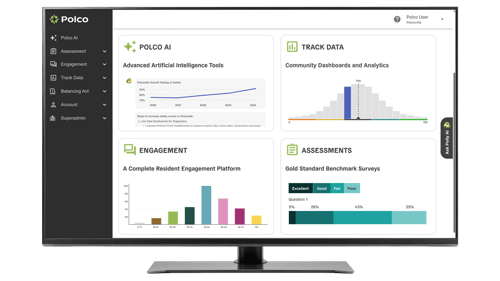
Once logged in, the admin dashboard gives you quick access to all platform modules via the left-hand navigation panel:
- Polco AI — Chat with Polly (data and analytics), Grace (grant writing), or other AI agents; view AI session history
- Engagement — Create and manage polls, surveys, content posts, live events, engagement pages, prioritizations, simulations, and benchmark surveys
- Track Data — View community livability dashboards powered by GPAL, plus Community Disparity
- Account — Manage your organization's profile, admin users, roles, and settings
The dashboard also surfaces quick-access panels for your Community Livability Snapshot, AI tools, Track dashboards, and engagement tools, so you can jump into the most common workflows right from your home screen.
A persistent Ask Polly AI button sits on the right edge of every admin page — tap it to open a slide-out panel and ask data questions without leaving your current screen.
Admin roles and permissions
The Admin Platform uses role-based access control, meaning each user is assigned a role that determines what they can see and do. There are four roles:
-
Manager
Full access — create, edit, publish, delete content, manage admin accounts, change roles. The first admin on any account is a Manager by default. -
Publisher
Can view, create, edit, publish, and share content. Can view and download results. Cannot delete content or manage admin accounts. -
Collaborator
Can view, create, and edit content. Can view and download results. Cannot publish, delete, or manage admin accounts. -
Viewer
Can view and share content and results only. Cannot create, edit, publish, or delete anything.
Seat limits
By default, each organization has 10 shared seats across the Manager, Publisher, and Collaborator roles combined. Viewer seats are unlimited. If your organization needs more than 10 active seats, contact your Customer Success Manager or reach out to success@polco.us.
Only users with the Manager role can add or remove other admins and change role assignments. To manage your team, go to Account → Settings → Administrators.
What admins see on the main dashboard
After logging in, the first screen is your organization's dashboard. From here you can:
- View your Community Livability Snapshot — a visual summary of how your community performs across livability domains
- Jump into Track dashboards to analyze performance data
- Open the Engagement module to create or manage content
- Access AI assistants for data analysis or grant writing
- See platform announcements in the What's New panel
You can return to this dashboard at any time by clicking the Polco logo in the top-left corner.
The Resident Platform
 What it is
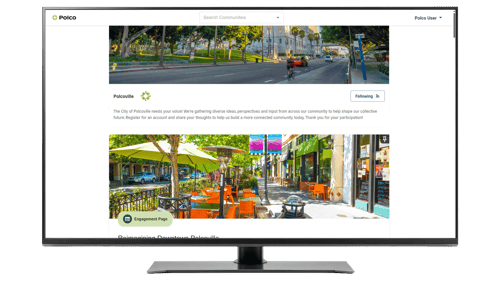
The Resident Platform is the public-facing side of Polco — what community members see when their local government shares a poll, publishes a survey, or posts an update. It's designed to be simple, accessible, and mobile-friendly, with no technical knowledge required to use it.
How to access it
Residents can access the platform at polco.us/n/res or through any direct link shared by their local government (survey links, QR codes, engagement page URLs, or social media posts all lead directly to the relevant content on the resident side).
Residents can also search for their community by name at polco.us and browse from there.
Registration is optional — but unlocks more
One of the most important distinctions on the resident side is that registration is not required to participate. Residents can browse content and respond to most polls and surveys without creating an account. This lowers the barrier to participation and supports anonymous engagement when that's appropriate.
However, creating a free account unlocks additional capabilities:
- Save participation history and see past responses
- Follow specific organizations to get updates when new content is published
- Receive notifications about new surveys, results, and project updates
- Access a personalized feed tailored to the communities you follow
How residents sign up
From the resident platform, residents can create an account using:
- Email address + password — standard registration, requires a ZIP code to connect them to local content
- Google — single sign-on using a Google account
- Facebook — single sign-on using a Facebook account
Important: Residents should use a consistent login method. Signing up with email and then trying to log in with Google (or vice versa) can result in duplicate accounts unless the same email address is used across both methods.
ZIP code at sign-up
Residents are asked for their ZIP code during registration. This connects them to relevant local, county, state, and school district organizations so their feed shows content that's actually relevant to where they live.
What residents see
The resident experience is organized around a personalized engagement feed — a scrolling list of published content from the organizations they follow or that are linked to their location. Content in the feed includes:
- Surveys — Multi-question feedback instruments with a Take Survey button
- Polls — Short, focused questions with quick response options
- Content Posts — Updates, announcements, and reports from local government
- Engagement Pages — Project hubs that group all related content for a specific initiative
- Prioritizations — Activities where residents rank or allocate points across options
- Simulations — Interactive budget, housing, or policy trade-off tools
- Live Events — Real-time polling during town halls or virtual meetings
Each item in the feed shows the publishing organization's name and location, the content type (labeled with a badge), publish date, and status (Active, Upcoming, or Closed). Residents click through to respond or read more.
The resident account page
Logged-in residents have access to an account page where they can:
- View and edit their profile information
- See the organizations they follow
- Review their participation history
- Manage notification preferences
- Log out